Welcome to Synapse!
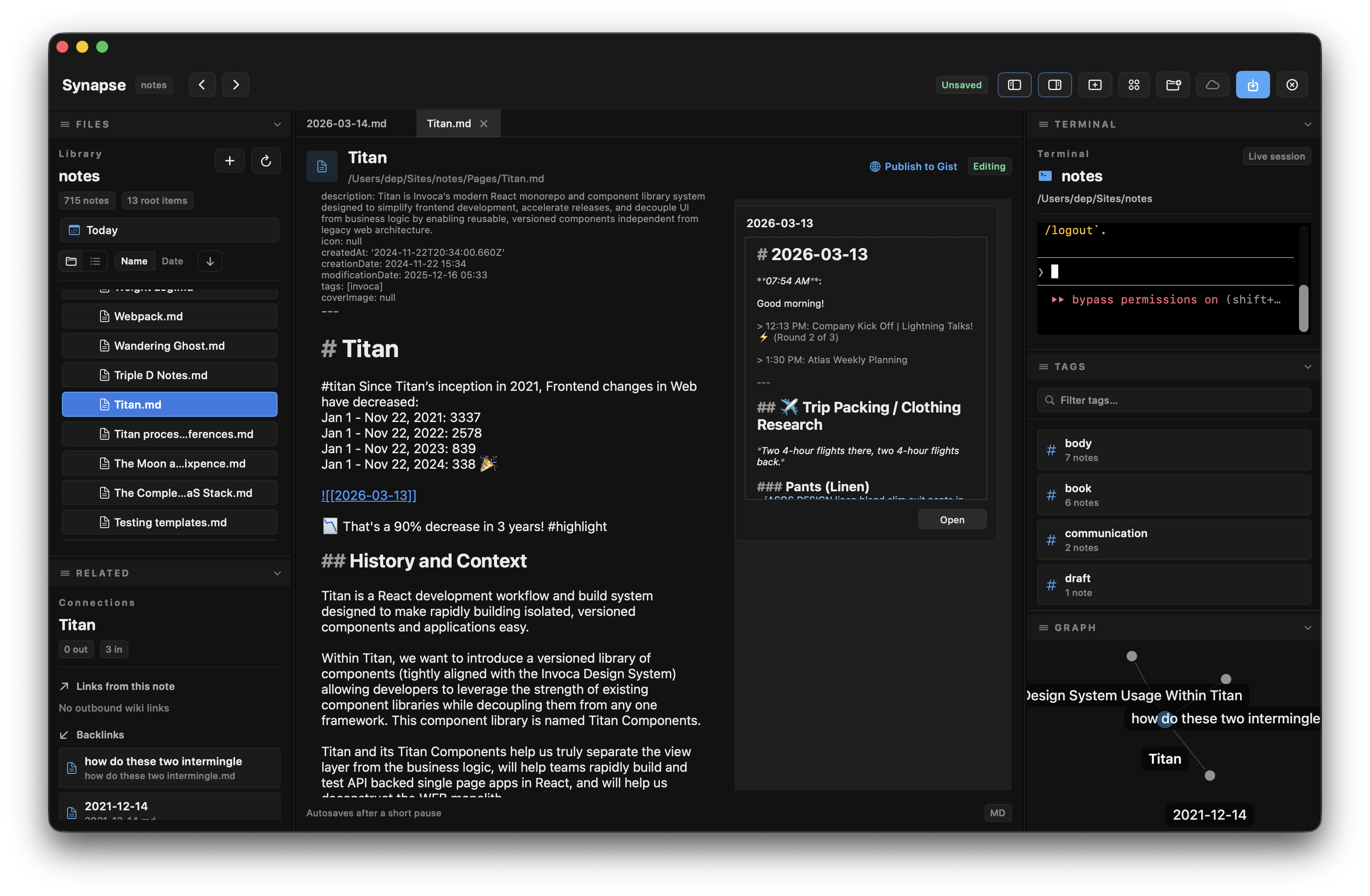
Synapse is a powerful Markdown-based knowledge management application exclusively built for macOS using SwiftUI. It serves as your second brain, supercharged with local graph visualization, Git sync, and seamless workflows.
♥️ Built by nerds for nerds.
Setup & Installation
- Download the App: Download the latest release of Synapse.
- Installation: Drag the Synapse application to your
Applicationsfolder. - Open a Vault: Upon launching Synapse, you'll be prompted to select a folder. This folder acts as your Vault, where all your Markdown notes and assets are stored locally.
Initial Configuration
Once your vault is opened, consider configuring the following:
- Git Sync: Navigate to
Settings > Auto-saveto ensure your vault is backed up or synced with a remote Git repository. - Terminal Integration: If you use the built-in terminal, set your preferred "On-boot command" in the Settings.
Features
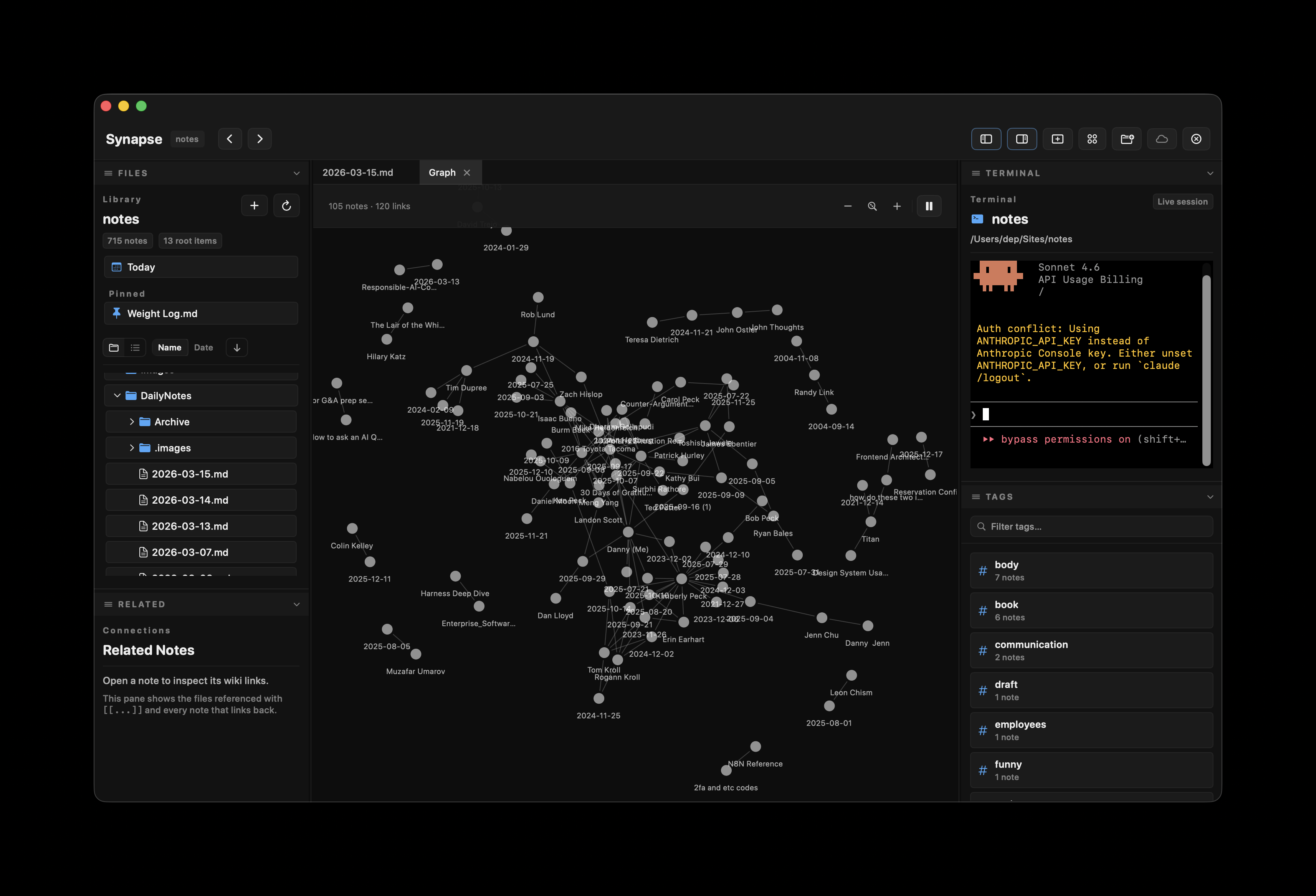
Synapse packs a robust set of features to boost your productivity.
Markdown Editor
- Live Styling: Write in plain text, but see bold, italics, links, and code blocks styled live.
- Preview Mode: Toggle a clean rendered view that hides markdown syntax (
⌘⇧P). The eye icon in the toolbar activates it. - Hide Markdown While Editing: Enable in Settings → Editor to keep syntax hidden as you type — a distraction-free writing mode with real-time rendering.
- Slash Commands: Type
/time,/date,/todo, or/noteat the start of a line or after a space — expands instantly as you type. - Wikilinks: Easily link to other notes using
[[Note Name]], or highlight text and pressCMD + Kto turn it into a wikilink with that text as the display alias. - Embedded Notes: Include other notes directly using
![[Note Name]]. - Media Previews: Inline support for image rendering and YouTube video previews.
- Paste HTML as Markdown: Copy content from any website and paste it directly into Synapse — it's automatically converted to clean Markdown.
- View History: Access the View History button in the file editor to see previous versions of your note.
Navigation
- Tabs: Cycle through your most recently used (MRU) tabs seamlessly.
- Split Panes: Work efficiently by splitting your editor vertically or horizontally.
- Command Palette: Quickly find files or insert templates from anywhere.
- Mobile Search: Search within the current note from the editor toolbar, or search across your entire vault from the file drawer.
Graph View
Visualize connections between your notes.
- Local Graph: See a 1-hop view of links related to your current note in the sidebar.
- Global Graph: A comprehensive, force-directed graph of your entire vault.
Git Integration
- Auto-Sync: Optionally enable automatic commit, push, and pull functionality.
- Conflict Handling: Git conflicts are managed cleanly within the interface.
Daily Notes & Templates
- Daily Notes: Start each day with a fresh note created automatically using customizable templates.
- Templates: Use templates for dynamic note creation with variables like
{{year}},{{month}},{{day}}, and{{cursor}}(where the cursor lands after template insertion).
Pinning
Pin frequently used notes, folders, and tags for quick access directly from the sidebar.
- Right-click any file or folder in the file tree and select Pin
- Right-click any tag in the Tags pane and select Pin
- Pinned items appear in a Pinned section above the file tree
- Click a pinned note to open it;
Cmd+clickopens it in a new tab - Click a pinned folder to expand and scroll to it in the file tree
- Click a pinned tag to open a filtered view of that tag in a new tab
- Pins are vault-specific and persist across app restarts
Extensible Sidebar
Customize left and right sidebars with panes:
- Files: A file tree view.
- Tags: See all tags used across your vault.
- Terminal: An integrated ZSH terminal inside the app.
- Related Links: See what files link to the current one.
- Graph: The local vault graph.
Drag and drop files directly to sidebar panes to move or organize your notes.
Gist Publishing
Easily publish specific notes to GitHub Gists using your Personal Access Token (PAT).
.gitignore Support
Synapse can automatically hide files and folders that your project's .gitignore rules mark as ignored — so node_modules/, build/, and other generated directories stay out of your file tree without any extra configuration.
- Enable or disable this in Settings → File Browser → Respect .gitignore (on by default).
- Nested
.gitignorefiles and global git ignores are honoured automatically. - Non-git vaults are unaffected — scanning works normally.
Vault-Specific Settings
Settings automatically sync with your vault. When you open a vault, Synapse stores its settings in .synapse/settings.yml at the vault root:
- Portable Settings — Settings travel with the vault, perfect for syncing via Git or cloud storage
- Vault Independence — Each vault has its own independent settings
- Visible & Controllable — The
.synapsefolder appears in your file tree; you control whether to commit it - Privacy Protected — Your GitHub Personal Access Token stays local in
~/Library/Application Support/Synapse/settings.ymland never leaves your machine
Settings
To access Synapse settings, press CMD + , or navigate to Synapse > Settings in the menu bar.
General
- On-boot terminal command: Set a command that runs automatically when the Terminal pane is loaded (e.g., loading an environment, starting Claude Code, etc).
- File extension filters: Define which file extensions are visible in your vault's File Tree.
Workflows
- Daily Notes:
- Enable/disable auto-creation.
- Set the default folder for daily notes.
- Choose a template for daily notes.
- Templates Directory: Define the folder containing your note templates.
Sync
- Auto-save: Enable automatic saving of changes.
- Auto-push (Git): If your vault is a Git repository, Synapse can automatically commit and push changes on a set interval.
- GitHub PAT: Provide a GitHub Personal Access Token to enable publishing notes as Gists.
Sidebar Layout
Fully customize your workspace by managing panes in the left and right sidebars. Available panes:
- Files
- Tags
- Related
- Terminal
- Graph
Keyboard Shortcuts
Synapse relies heavily on keyboard shortcuts to help you navigate and edit quickly.
File & Note Management
| Action | Shortcut |
|---|---|
| New Note | CMD + N |
| New Untitled Note | CMD + T |
| Close Vault / Exit | CMD + SHIFT + N |
| Save | CMD + S |
| Command Palette | CMD + K or CMD + P (CMD + K on selected text opens the wiki link picker) |
Search
| Action | Shortcut |
|---|---|
| Find in Note | CMD + F |
| Global Search | CMD + SHIFT + F |
| Find Next | CMD + G |
| Find Previous | CMD + SHIFT + G |
Navigation & Tabs
| Action | Shortcut |
|---|---|
| Close Tab | CMD + W |
| Close Other Tabs | CMD + SHIFT + W |
| Reopen Closed Tab | CMD + SHIFT + T |
| Switch to Tab (1-8) | CMD + 1 to CMD + 8 |
| Switch to Last Tab | CMD + 9 |
| Go Back (History) | CMD + [ |
| Go Forward (History) | CMD + ] |
| Cycle MRU Tabs | CTRL + TAB |
Split Panes
| Action | Shortcut |
|---|---|
| Split Vertical | CMD + D |
| Split Horizontal | CMD + SHIFT + D |
| Switch Panes | CMD + OPT + Arrows |
Other
| Action | Shortcut |
|---|---|
| Open Global Graph | CMD + SHIFT + G |
| Open Today's Note | CTRL + CMD + H |
| Toggle Preview Mode | CMD + SHIFT + P |
| Toggle Hide Markdown While Editing | CMD + E |
Context-Aware Assistance
Synapse provides context-aware assistance by creating a .synapse/state.json file at the start of relevant interactions. This file contains information about the current note the user is viewing, including the vault-relative path to the note, the list of open tabs, and the last updated timestamp.
This enables context-aware assistance where "this note" refers to the active file. So if you are using an AI Agent inside of your Notes vault, it's recommended that you add the following instructions to your agent configuration (into your root AGENTS.md file):
### Current Note Context

<critical_info>
This allows the user to reference the current note or notes they are viewing in the Notes vault.

eg., "What is the current note?"
</critical_info>

When operating in a Synapse vault directory, read `.synapse/state.json` at the start of relevant interactions to understand which note the user is currently viewing. This enables context-aware assistance where "this note" refers to the active file.

**State file format:**
```json
{
  "currentFile": "notes/my-note.md",
  "openTabs": [
    "notes/my-note.md",
    "journal/2026-03-25.md"
  ],
  "lastUpdated": "2026-03-25T14:30:00Z"
}
```

- `currentFile` — Vault-relative path to the currently focused markdown file (null if graph/tag view is active)
- `openTabs` — Array of vault-relative paths for all open note tabs
- `lastUpdated` — ISO 8601 timestamp of when the state was last written

**Guidelines:**
- Check this file when the user refers to "this note" or when context about the active file would be helpful
- Use vault-relative paths from this file when working with notes
- The file is transient runtime state and may not exist if Synapse is not running